- Setting Permission Management
- Setting Permission Management for users
- Setting App Usage Permission for users for option apps/basic apps with option apps
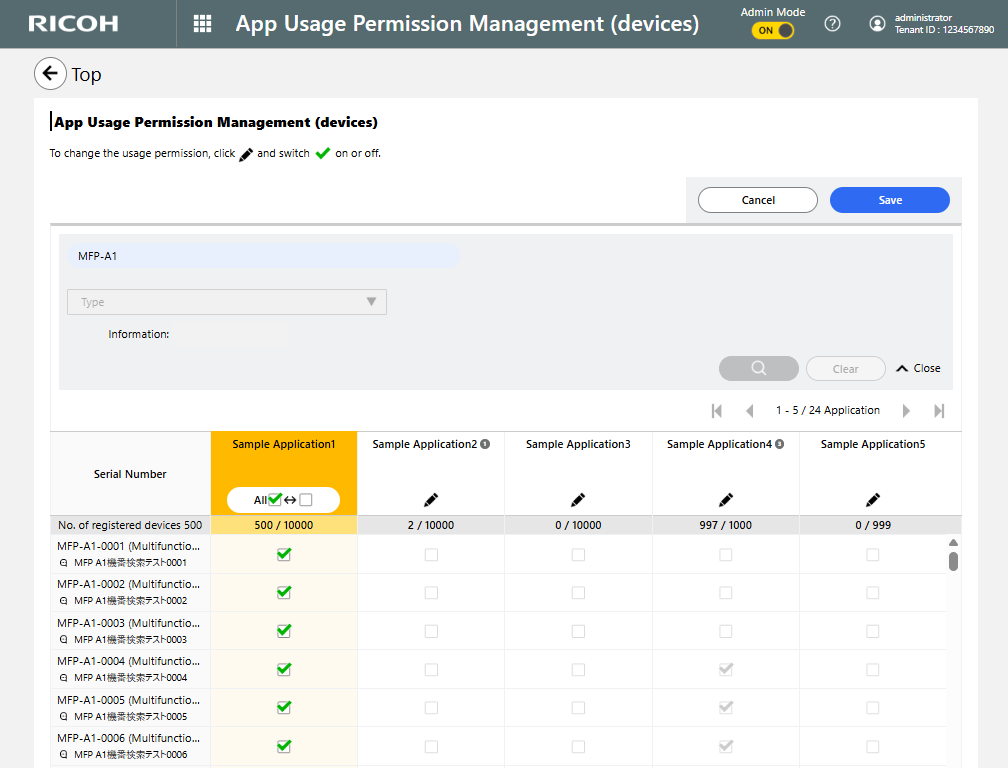
- Setting Permission Management for devices
- Setting App Usage Permission for devices for option apps/basic apps with option apps
- When Configuring App Usage Permission for Multiple Users Matched
- When Configuring App Usage Permission for Multiple Devices Matched
Setting Permission Management
Setting Permission Management for users
This is displayed only when you have an appropriate license to manage that number of users.
 Click [
 Setting] on the application and user column to change the usage permission.
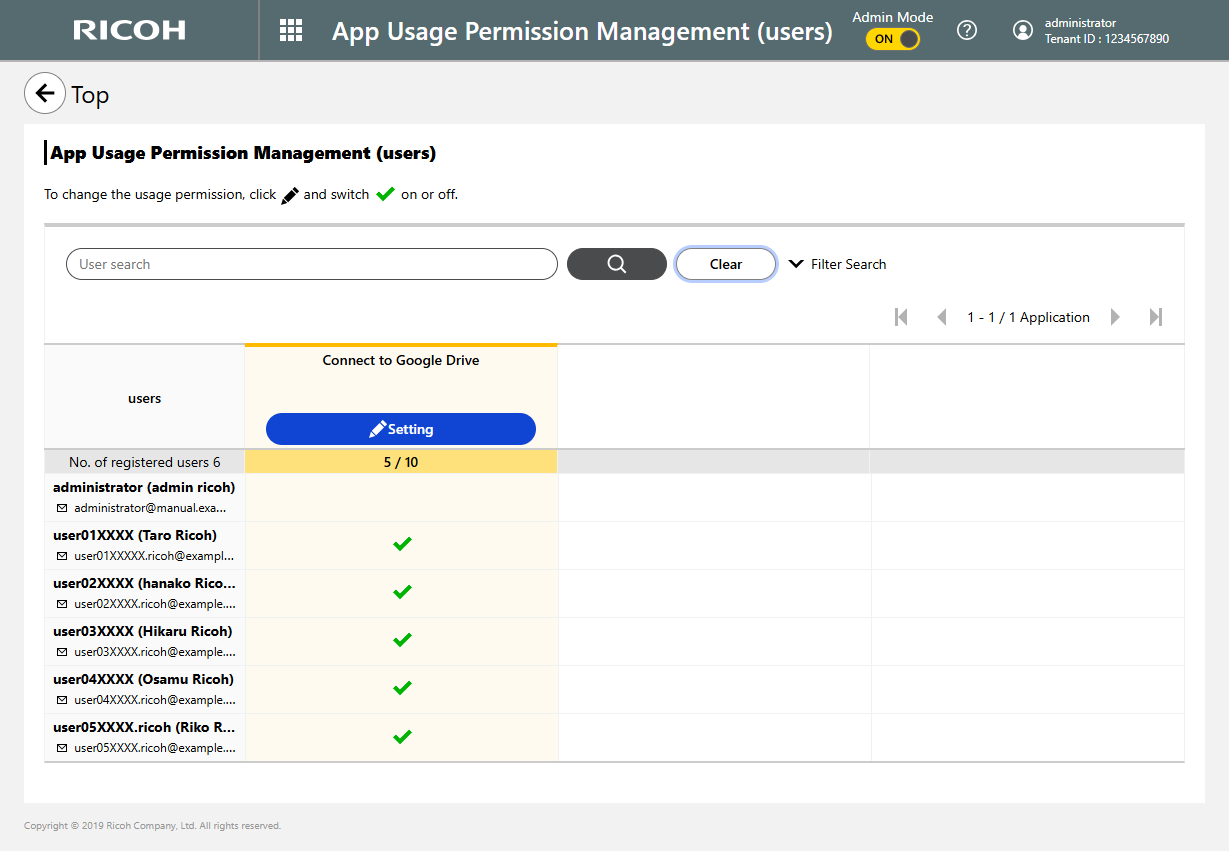
| Item | Description |
|---|---|
 |
A user whose application usage permission has been set. |
| Blank | A user whose application usage permission has not been set. |
 Modify the user usage permission.
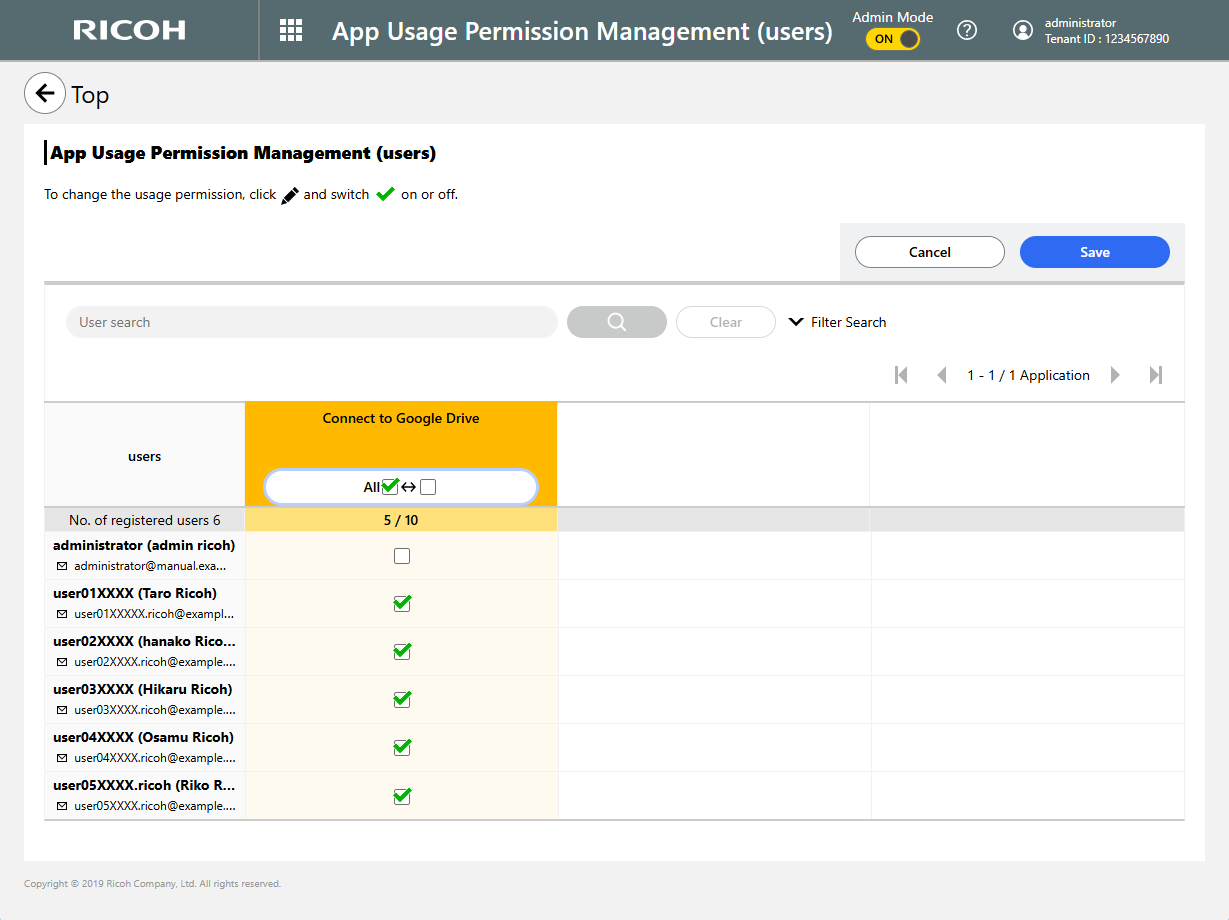
 Click [Save].
The changed settings will be effective.
Setting App Usage Permission for users for option apps/basic apps with option apps
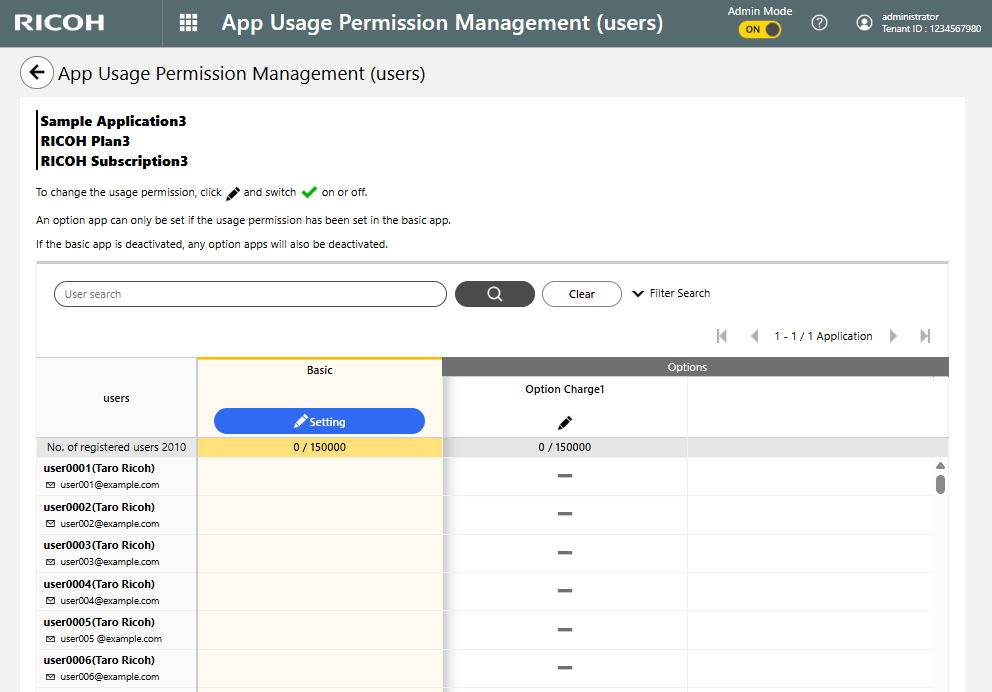
On the Permission Management (User) screen, click
[Setting] of the app with option apps.
If the app does not have option apps, see the procedure for Setting Permission Management for users.
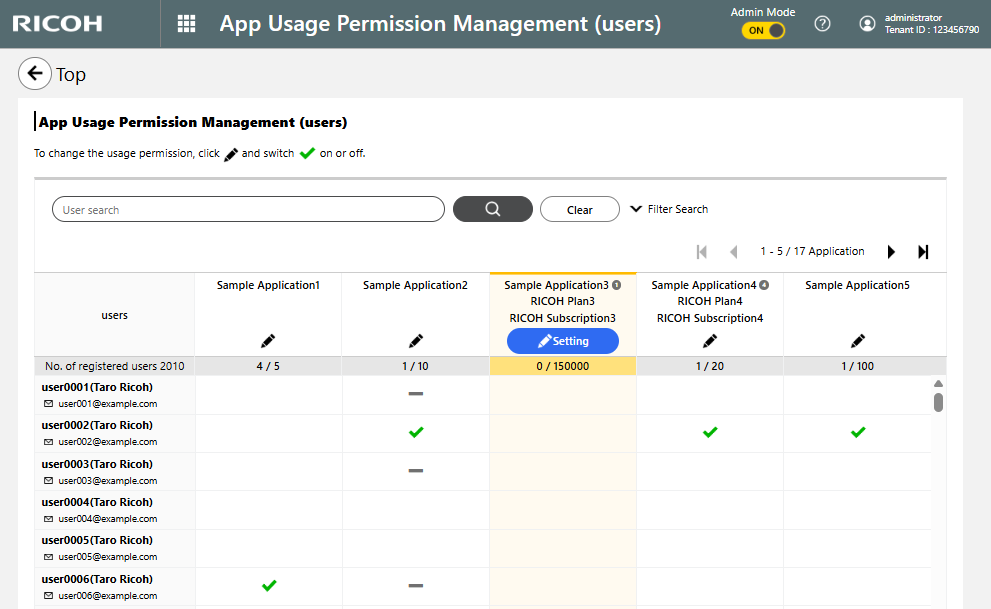
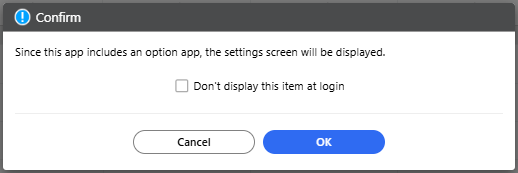
Click [OK].If you select the checkbox for [Don't display this item at login], this dialog will not appear again.
The Option App Usage Permission Management (User)
screen appears.
Assign app usage permission using the same procedure as that for Setting Permission Management for users.
Usage permission can be assigned for the option apps after permission is assigned for the basic app.
When usage permission for the basic app is removed, permission for the option apps will also be removed.
Setting Permission Management for devices
This is displayed only when you have an appropriate license to manage that number of devices.
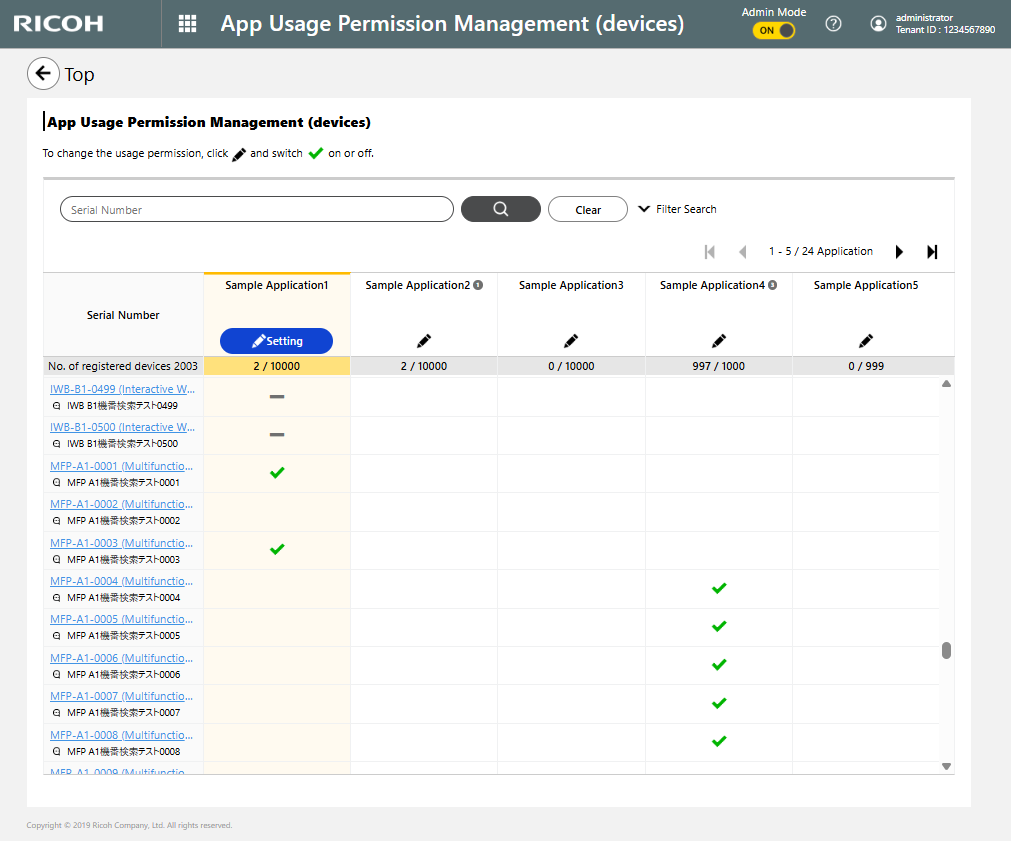
Click [Setting] on the application and device column to change the usage permission.
| Item | Description |
|---|---|
|
A device whose application usage permission has been set. |
| Blank | A device whose application usage permission has not been set. |
 |
A device whose usage permission cannot be set because this type of device cannot be used for the application. |
Modify the device usage permission.
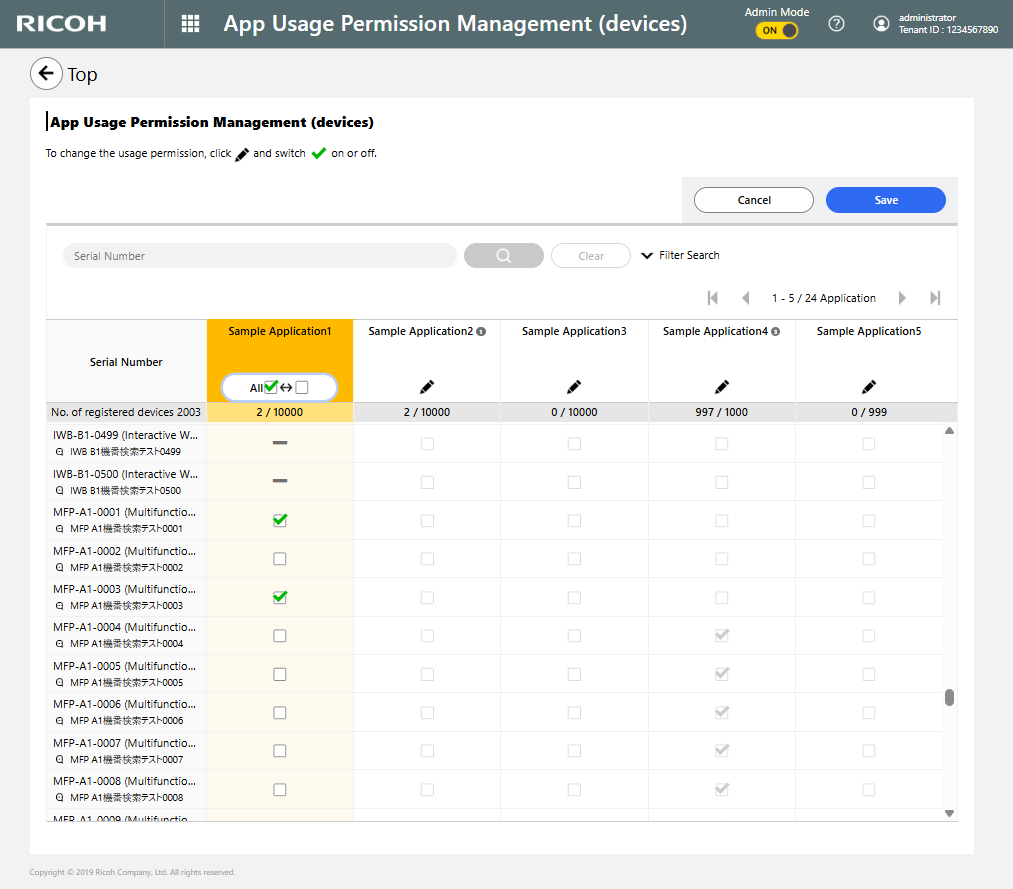
Click [Save].The changed settings will be effective.
Setting App Usage Permission for devices for option apps/basic apps with option apps
On the Permission Management (Device) screen, click
[Setting] of the app with option apps.
If the app does not have option apps, see the procedure for Setting Permission Management for devices.
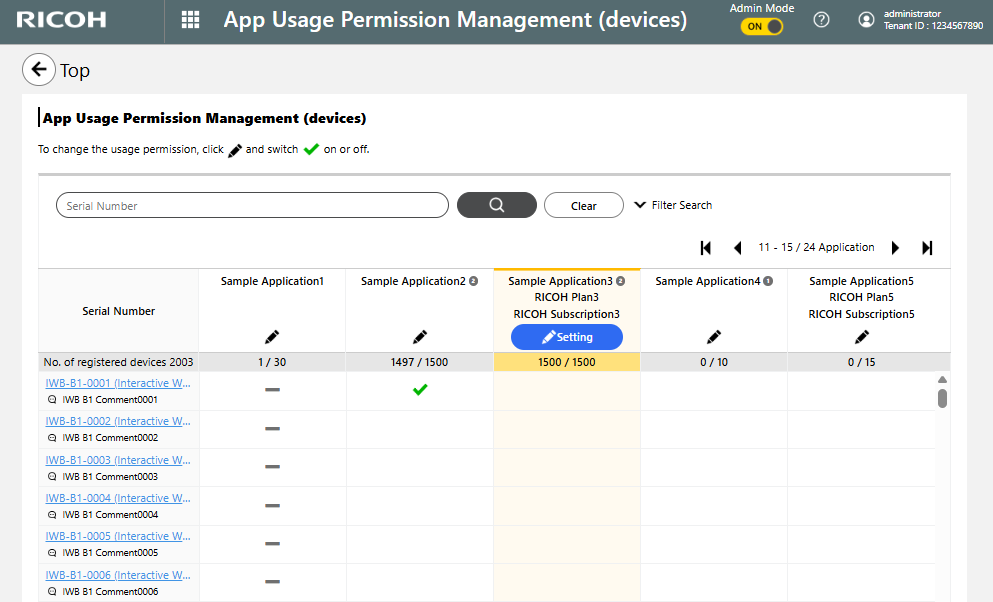
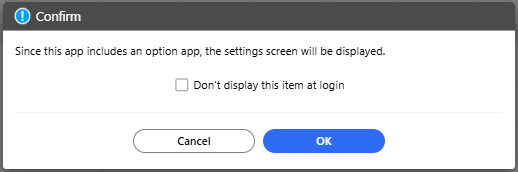
Click [OK].If you select the checkbox for [Don't display this item at login], this dialog will not appear again.
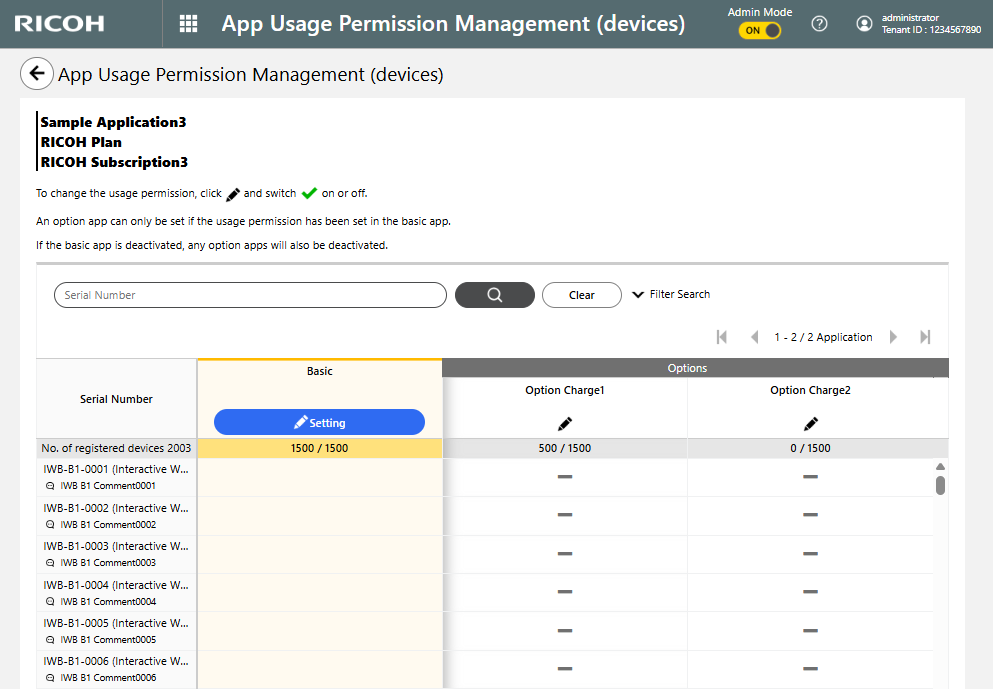
The Option App Usage Permission Management (Device)
screen appears.
Assign app usage permission using the same procedure as that for Setting Permission Management for devices.
Usage permission can be assigned for the option apps after permission is assigned for the basic app.
When usage permission for the basic app is removed, permission for the option apps will also be removed.
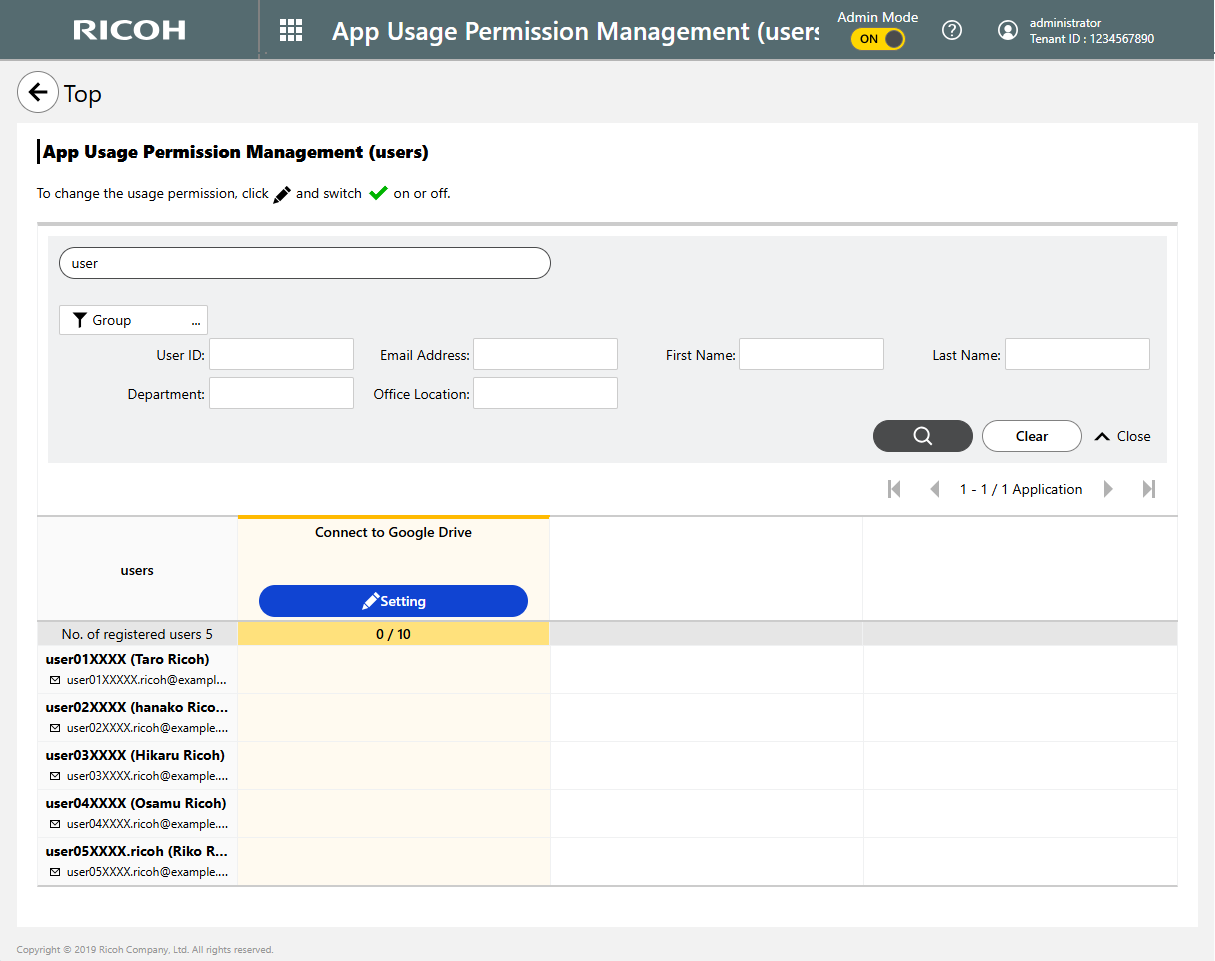
When Configuring App Usage Permission for Multiple Users Matched
On the "App Usage Permission (Users)" screen, search
for users whose app usage permission settings you want to change.
The user list will display the search results.
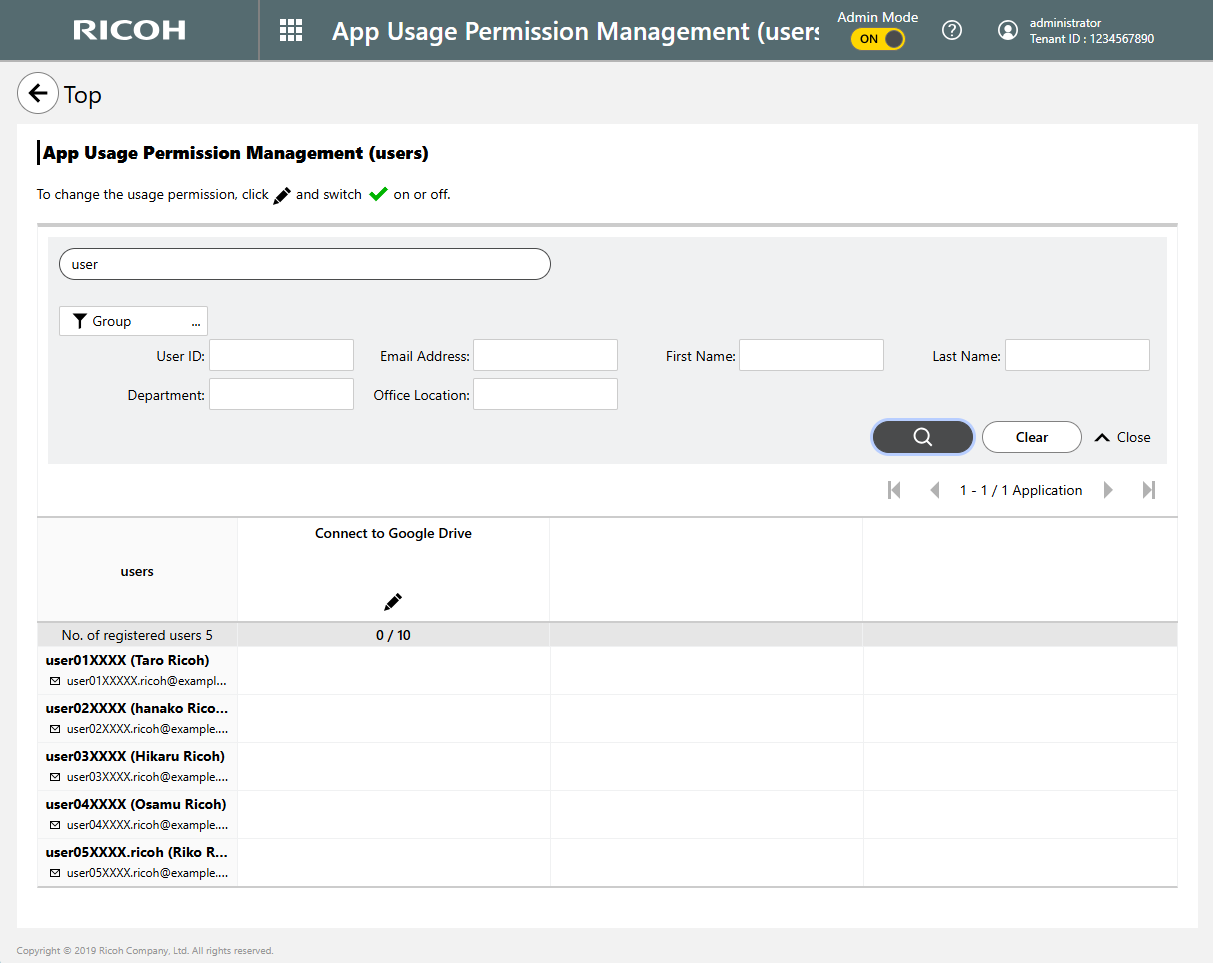
Click [Setting] for the application you want to change
app usage permission settings.
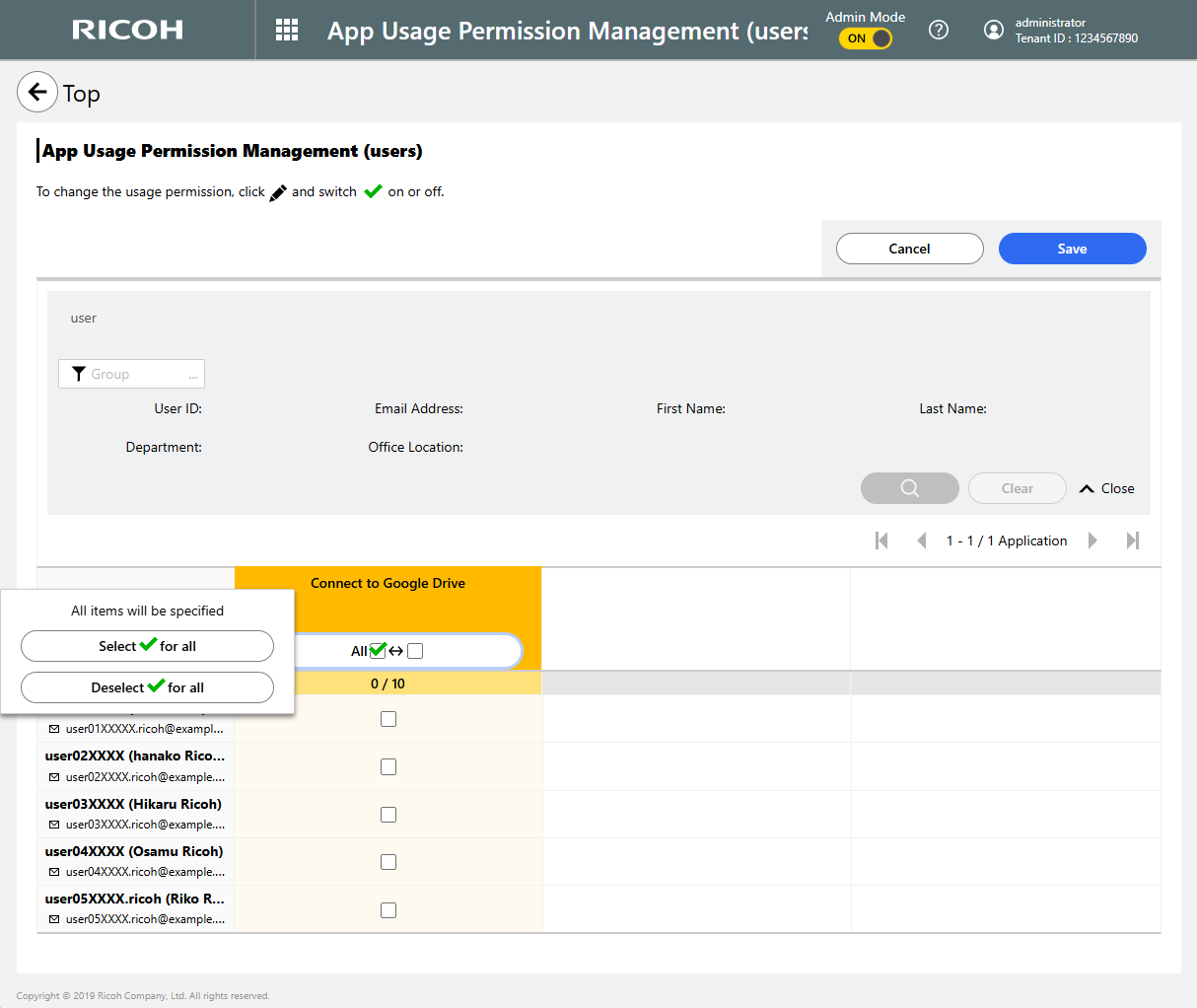
Click [All], and then select .
.
 Click [OK].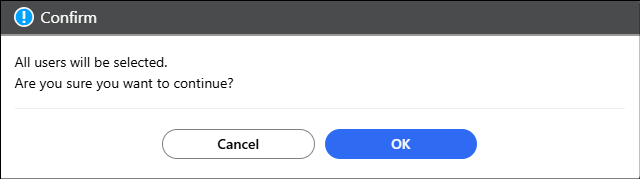
 Click [Save].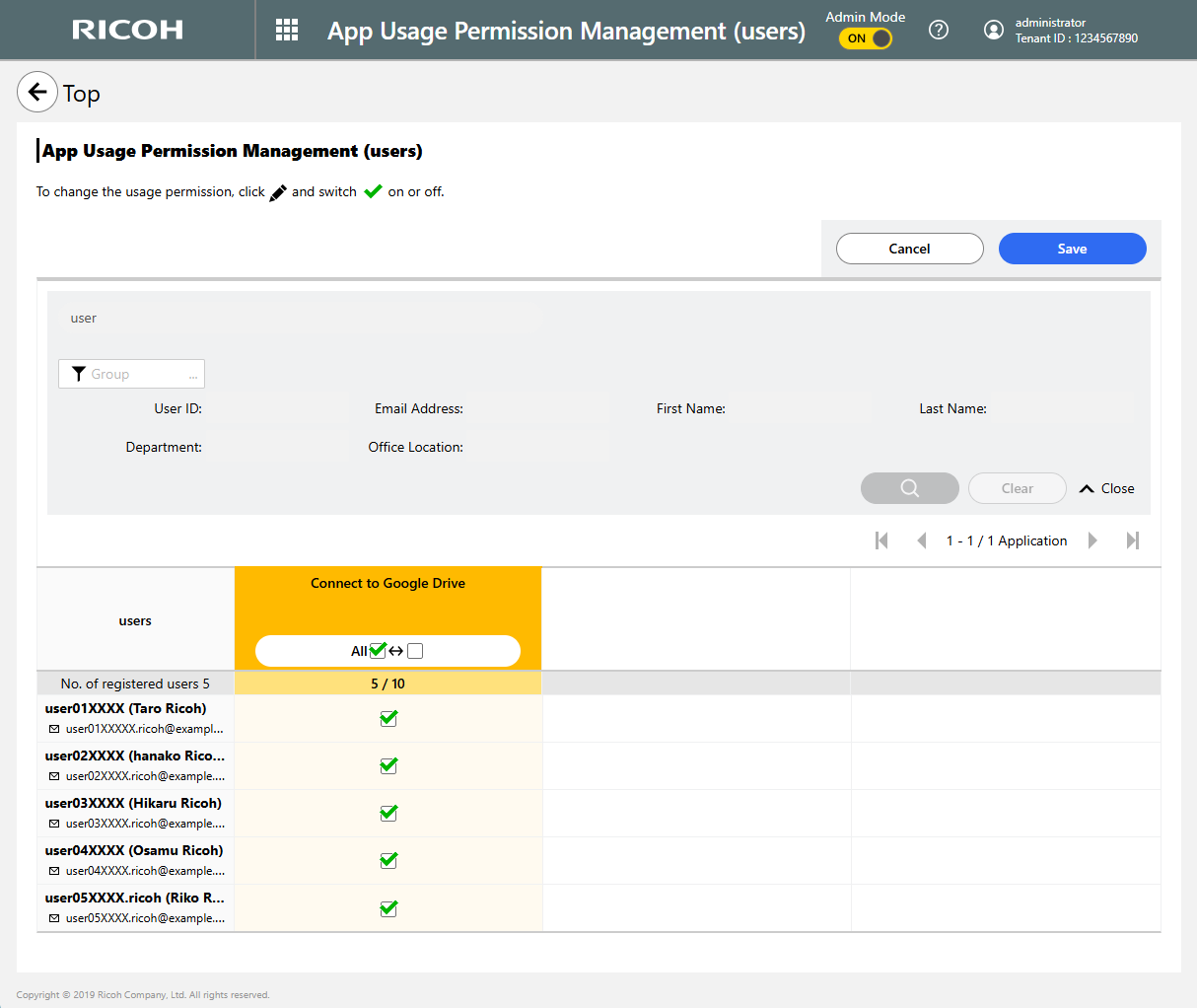
When Configuring App Usage Permission for Multiple Devices Matched
On the "App Usage Permission (Devices)" screen, search
for the devices whose app usage permission settings you want to change.
The device list will display the search results.
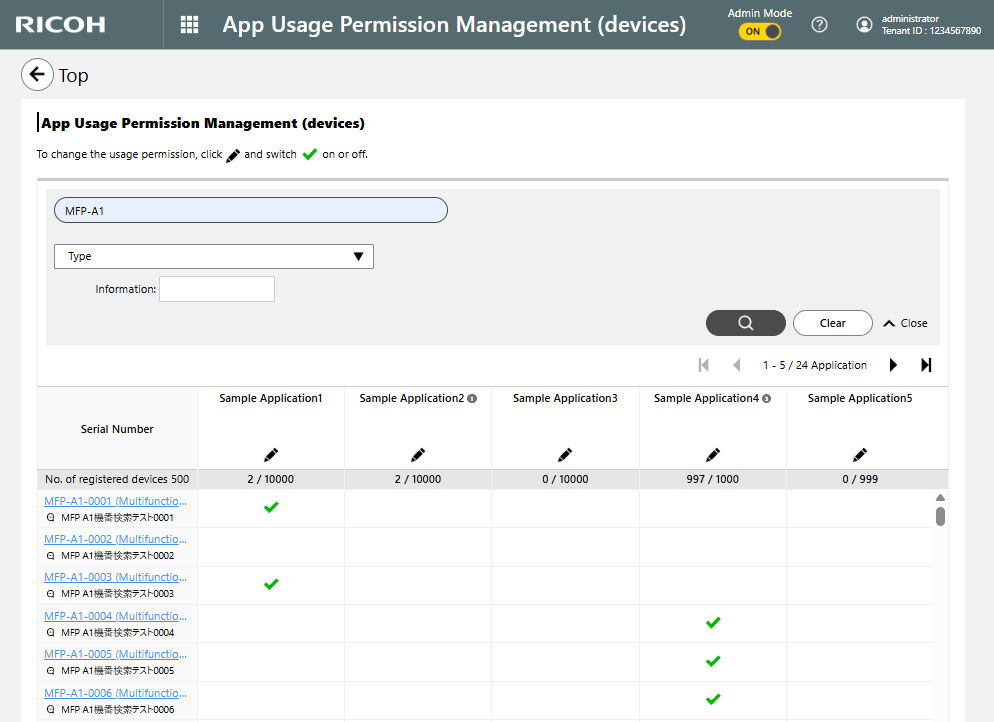
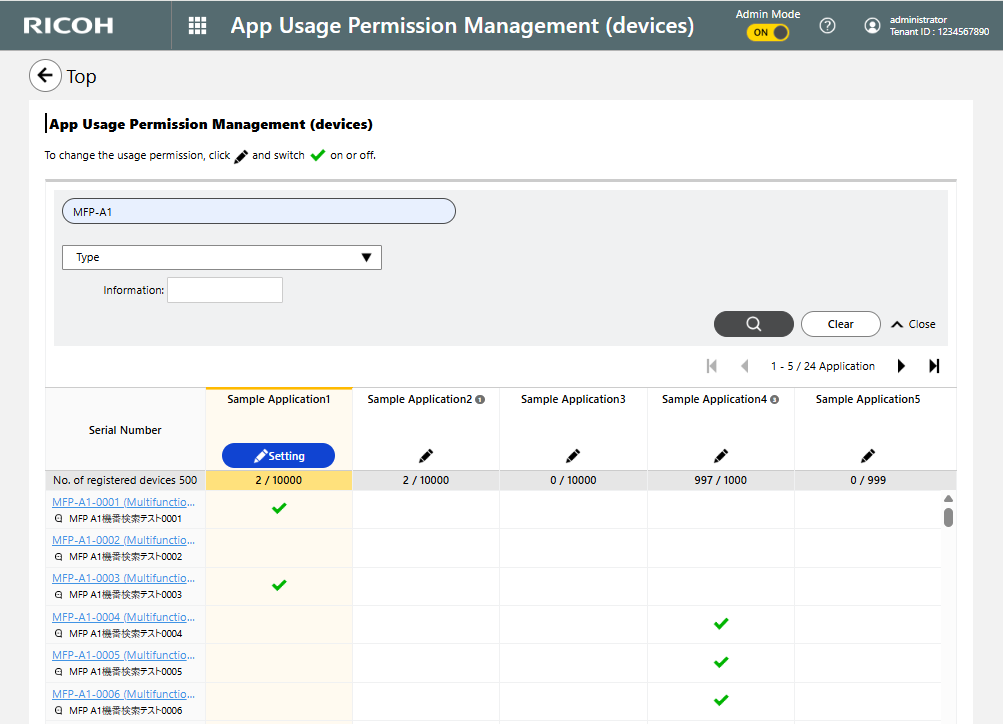
Click [Setting] for the application you want to change
app usage permission settings.
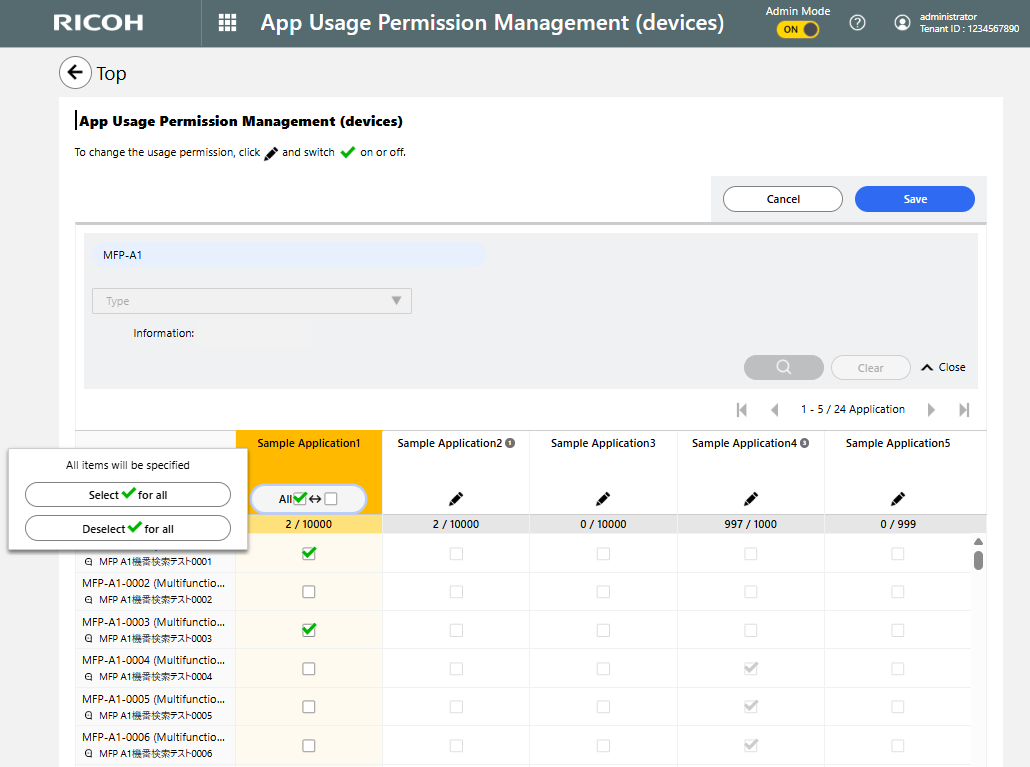
Click [All], and then select.
Click [OK].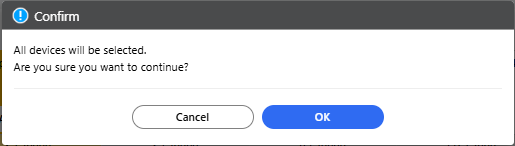
Click [Save].