
Permission Management
You can access this function from Utility under Admin Mode.
An administrator of a tenant can specify which user or device can access which app.
Permission Management (User) screen
This is displayed only when you have an appropriate license to manage that number of users.
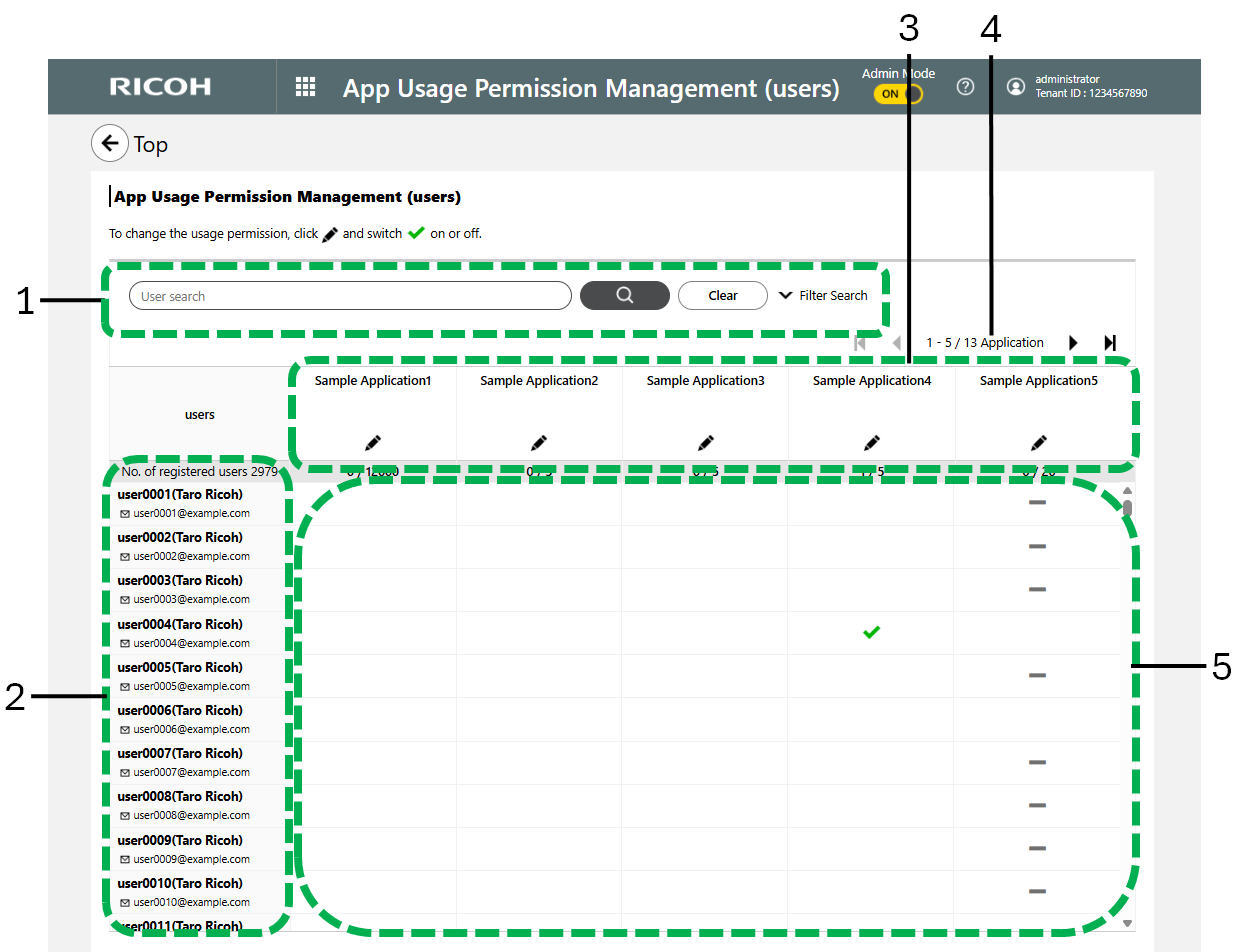
- Search box/Detailed Search
When a keyword is entered, users who have forward matching with the keyword are searched and listed in the user list. When you click [Detailed Search], a search box for a detailed search opens.
-
Search box
The length of a keyword can be between 1 and 256 characters. The following entries are searched:- User ID
- Given name*1
- Family name*1
- Email Address
- Department
- Office Location
-
*1 When searching a user name, enter either the given name or family name. If you enter the given name
and family name together, the user name is not searched.
-
Detailed Search
You can use the search criteria listed below to narrow a search.- Group
Select a group from the list of registered groups. - User ID
The length of a keyword can be between 1 and 128 characters. - Email Address
The length of a keyword can be between 1 and 128 characters. - Family name
The length of a keyword can be between 1 and 128 characters. - Given name
The length of a keyword can be between 1 and 128 characters. - Department
The length of a keyword can be between 1 and 256 characters. - Office Location
The length of a keyword can be between 1 and 256 characters.
- Group

- If the number of users matched exceeds 1,000, you cannot configure the application usage permissions. Narrow the search so that the number of users matched is fewer than 1,000.
- User list
Displays the registered users.
- Apps list
Displays the names of apps to which tenant user access can be assigned.
If there are option apps, the number of option apps is displayed next to the app name.
- Next/Previous Page
If the number of apps exceeds five, you can use this to change to a different page.
- App usage permissions
The number of app usage permissions is shown as "the number of app usage permissions assigned/the number of app usage permissions available".
- Permission Management
Displays the availability of app access assignments.
Option App Usage Permission Management (User) screen
On the Permission Management (User) screen, click the [Setting] button of the app with option apps to switch to this screen.
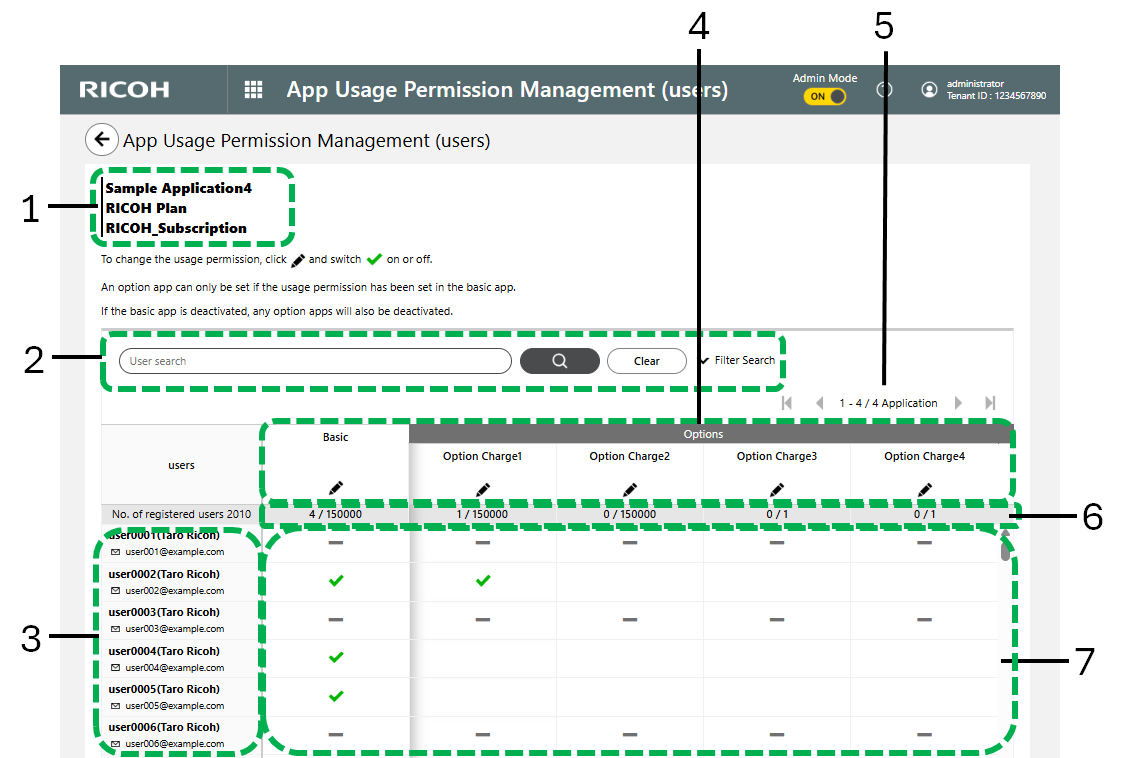
- Page title
Displays the following information about the app that you have selected on the Permission Management (User) screen.
- App Name
- Plan Name *1
- Subscription ID *1
-
*1 Not displayed if it is not specified.
- Search box/Detailed Search
For how to use the search box and the Detailed Search function, see "Search box/Detailed Search" under Permission Management (User) screen.
- User list
Displays the registered users.
- Apps list
Displays the names of apps to which tenant user access can be assigned.
The first column on the left always displays information about the basic app selected on the Permission Management (User) screen. The second column onwards displays option apps.
- Next/Previous Page
If the number of apps exceeds six, you can use this to change to a different page.
The first column on the left always displays information about the basic app selected on the Permission Management (User) screen, and only the option app columns change.
- App usage permissions
The number of app usage permissions is shown as "the number of app usage permissions assigned/the number of app usage permissions available".
- Permission Management
Displays the availability of app access assignments.
Usage permission must be assigned for the basic app before you can assign usage permission for the option apps.
Permission Management (Device) screen
This is displayed only when you have an appropriate license to manage that number of devices.
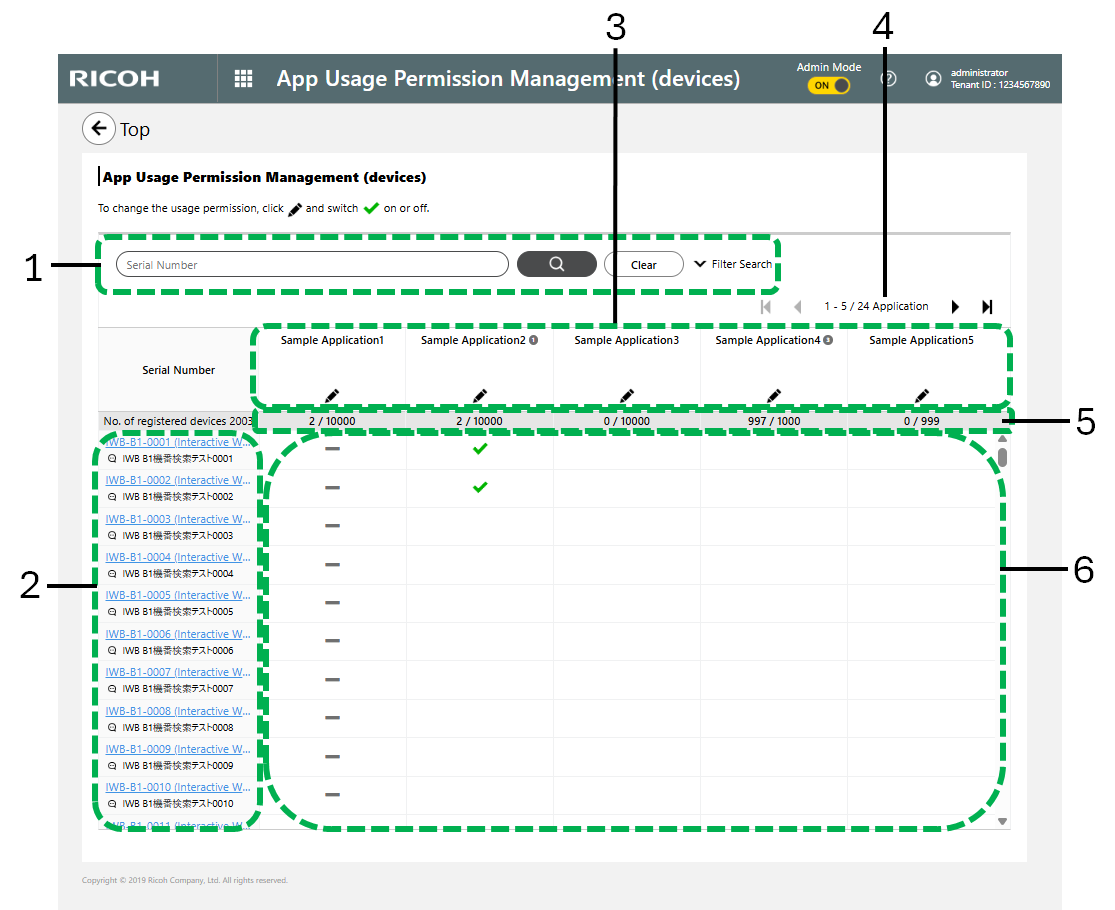
- Search box/Detailed Search
When a keyword is entered, devices that match the keyword are searched and listed in the device list. When you click [Detailed Search], a search box for a detailed search opens.
-
Search box
The length of a keyword can be between 1 and 128 characters. When searching, uppercase and lowercase letters are treated as different characters. The following entries are searched:- Serial Number
-
Detailed Search
You can use the search criteria listed below to narrow a search.- Device type
Select from the device types registered to the tenant. - Information
The length of a keyword can be between 1 and 256 characters.
- Device type
- If the number of devices matched exceeds 1,000, you cannot configure the application usage permissions. Narrow the search so that the number of devices matched is fewer than 1,000.
- If you searched only by device type, it is possible to configure application usage permissions even if the number of devices matched exceeds 1,000.
- Device list
Displays the registered devices. Click a device name to display the device editing screen.
- Apps list
Displays the names of apps to which tenant device access can be assigned.
If there are option apps, the number of option apps is displayed next to the app name.
- Next/Previous Page
If the number of apps exceeds five, you can use this to change to a different page.
- App usage permissions
The number of app usage permissions is shown as "the number of app usage permissions assigned/the number of app usage permissions available".
- Permission Management
Displays the availability of app access assignments.
Option App Usage Permission Management (Device) screen
On the Permission Management (Device) screen, click the [Setting] button of the app with option apps to switch to this screen.
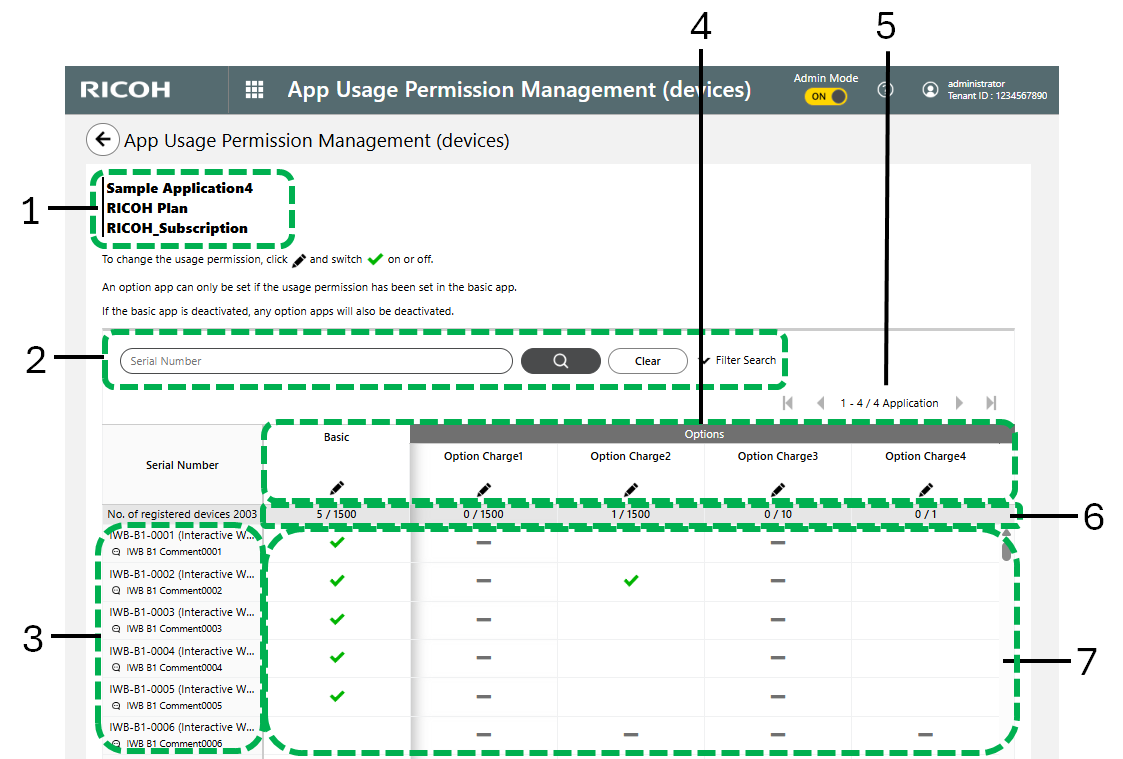
- Page title
Displays the following information about the app that you have selected on the Permission Management (Device) screen.
- App Name
- Plan Name *1
- Subscription ID *1
-
*1 Not displayed if it is not specified.
- Search box/Detailed Search
For how to use the search box and the Detailed Search function, see "Search box/Detailed Search" under Permission Management (Device) screen.
- Device list
Displays the registered devices.
- Apps list
Displays the names of apps to which tenant device access can be assigned.
The first column on the left always displays information about the basic app selected on the Permission Management (Device) screen. The second column onwards displays option apps.
- Next/Previous Page
If the number of apps exceeds six, you can use this to change to a different page.
The first column on the left always displays information about the basic app selected on the Permission Management (Device) screen, and only the option app columns change.
- App usage permissions
The number of app usage permissions is shown as "the number of app usage permissions assigned/the number of app usage permissions available".
- Permission Management
Displays the availability of app access assignments.
Usage permission must be assigned for the basic app before you can assign usage permission for the option apps.